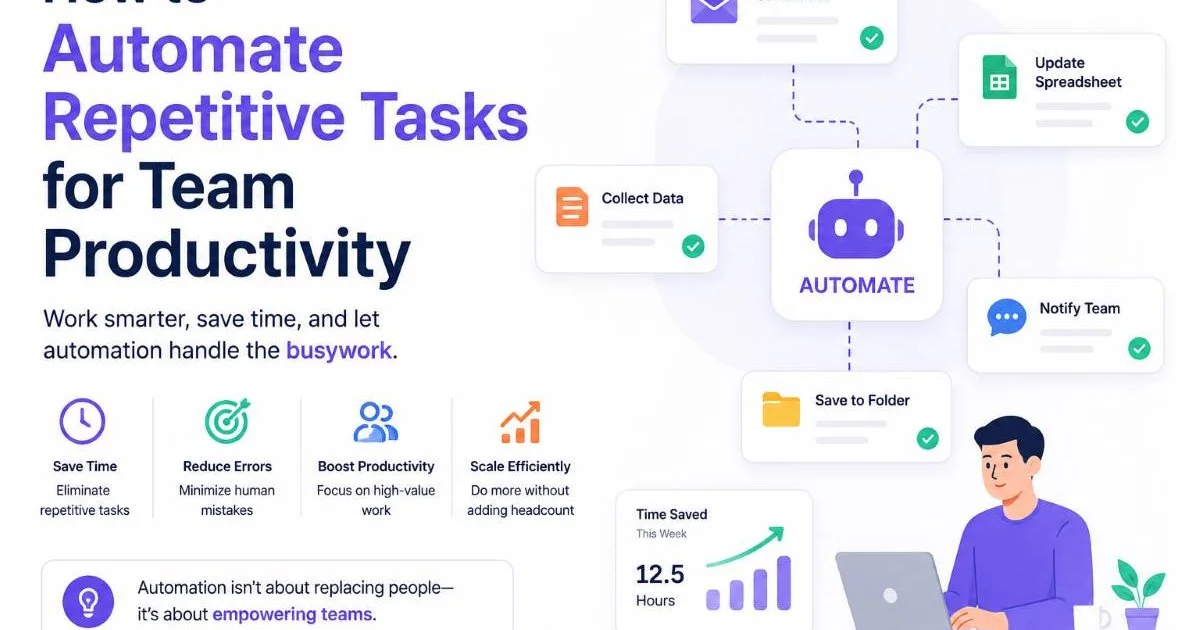
Automated workflows for teams represent one of the most effective ways to reclaim lost hours and redirect energy toward meaningful work. Every team, regardless of size or industry, carries a burden of repetitive tasks: status updates, file routing, approval chains, data entry, and notification management. These tasks eat into productivity quietly, often consuming 20 to 30 percent of a team member's workweek.
The cost compounds across departments, leading to missed deadlines, inconsistent processes, and frustrated employees. This guide walks you through the practical steps to identify, design, and implement workflow automation that measurably improves team productivity. You will learn which tasks to target first, how to select the right tools, and how to measure results so automation actually sticks. By the end, you will have a repeatable framework your team can apply immediately.
Key Takeaways
- Start by auditing your team's repetitive tasks before choosing any automation tool.
- Prioritize high-frequency, low-complexity tasks for your first automation wins.
- Map each workflow visually before building it in any platform.
- Measure time saved per task weekly to prove ROI and maintain team buy-in.
- Review and refine automated workflows quarterly to prevent process drift.

Step 1: Audit Your Team's Repetitive Tasks
Before you automate anything, you need a clear inventory of what your team actually does each week. Ask every team member to log their tasks for five business days, noting which ones they perform more than twice a week. Pay special attention to tasks that follow the same steps every time, like sending meeting summaries, updating project statuses, or routing documents for approval. This audit is where most teams fail because they skip it entirely and jump straight into tool selection.
Understanding what workflow automation is and how it works gives you the vocabulary to classify tasks properly. You are looking for activities that have predictable triggers, consistent steps, and defined outcomes. If a task requires significant human judgment or creative decision-making at every step, it is not a good automation candidate. Focus on the tasks that feel mechanical, because those are the ones draining your team's energy.
Categorize by Frequency and Complexity
Once you have your task list, sort every item into a simple two-by-two grid: high frequency versus low frequency on one axis, and low complexity versus high complexity on the other. Your first automation candidates sit in the high-frequency, low-complexity quadrant. These include things like sending weekly reports, assigning incoming support tickets, or copying data between spreadsheets. They happen often, follow predictable rules, and require minimal human judgment.
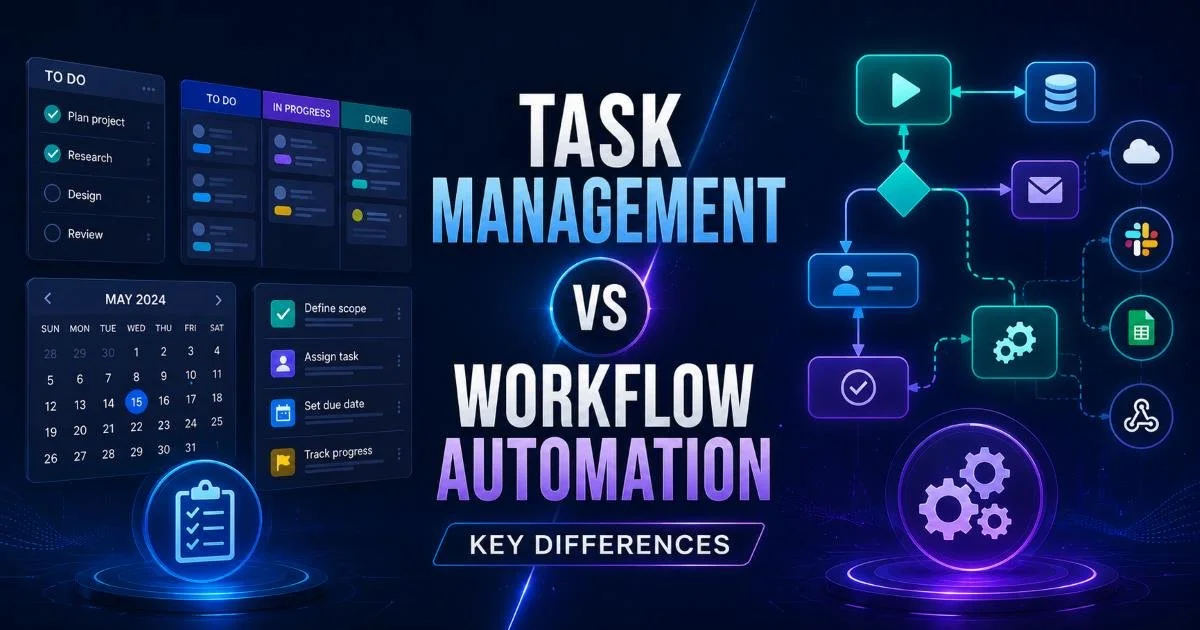
There is an important distinction here between task management and workflow automation. Task management organizes what needs to be done; workflow automation handles how it gets done without manual intervention. Many teams confuse the two and end up building elaborate to-do lists when they should be building automated sequences. Recognizing this difference early will save you weeks of misguided effort and tool frustration.
Have each team member highlight their top three most tedious recurring tasks. Those six to fifteen tasks are your automation priority list.
Step 2: Design Your Workflows Before You Build
Skipping the design phase is the fastest way to create automations that break, confuse people, or solve the wrong problem. Before opening any software, draw each workflow on paper or a whiteboard. Identify the trigger event (what starts the process), the conditions (what determines the path), and the actions (what happens at each step). This visual mapping forces you to confront edge cases and exceptions you would otherwise discover only after deployment.
A common mistake is designing workflows in isolation. Involve the people who actually perform the tasks. They know the informal workarounds, the exceptions that happen every third Tuesday, and the unspoken rules that never made it into the process documentation. Their input turns a theoretical workflow into something that reflects reality. Spend 30 minutes in a room with the right people rather than 30 hours debugging a broken automation later.
Read also How AI Tools Impact Your Data Privacy Strategy
Mapping Triggers, Conditions, and Actions
Every automated workflow follows a trigger-condition-action structure. The trigger is the event: a form submission, a calendar date, a status change, or an incoming email. Conditions are the branching logic: if the request is over $500, route it to a manager; if it is under $500, auto-approve it. Actions are the outputs: send a notification, create a task, update a database, or generate a document. Write these out in plain language before touching any tool.
Test your designed workflow on paper first by walking through three to five real scenarios from the past month. If a recent client onboarding involved five emails, two document signatures, and a kickoff meeting, trace each step through your proposed automation. Where does it handle things cleanly? Where does it need a human checkpoint? This dry run catches 80 percent of the issues you would otherwise hit in production. Document the final design with numbered steps so anyone on the team can understand the logic.
Not every step in a workflow needs to be automated. Strategic human checkpoints at approval stages or quality reviews prevent costly mistakes.
Step 3: Choose the Right Tools and Implement
With your workflows designed, you can now evaluate tools with specific requirements in hand rather than vague hopes. Look for platforms that integrate with the applications your team already uses. If your team lives in Google Workspace and Slack, pick a tool with native connectors for both. A comprehensive review of top workflow automation tools for small teams can help you narrow the field based on budget, integration depth, and ease of use.
Start with a single workflow, not ten. Choose the one that saves the most collective time per week and build it first. Run it in parallel with the manual process for one week to verify accuracy. This approach gives your team confidence in the system without the risk of a catastrophic failure. It also gives you a tangible success story to share when rolling out additional automations across other processes.
Comparing Popular Platforms
| Platform | Best For | Starting Price | Key Integration Count | Learning Curve |
|---|---|---|---|---|
| Zapier | Cross-app automation | $19.99/month | 6,000+ | Low |
| Make (Integromat) | Complex multi-step flows | $9/month | 1,500+ | Medium |
| Power Automate | Microsoft ecosystem | $15/user/month | 900+ | Medium |
| Monday.com | Project-based teams | $9/seat/month | 200+ | Low |
| n8n | Self-hosted, technical teams | Free (self-hosted) | 400+ | High |
When implementing, document every workflow with a brief description, its trigger, and who owns it. This documentation matters more than most teams realize. When someone leaves the company or a tool updates its API, you need a reference that explains why a workflow exists and what it does. Create a shared folder or wiki page dedicated to your team's automations. Treat it like infrastructure documentation, because that is exactly what it is.
Start with free tiers or trials to validate your workflow design before committing to annual subscriptions.
Beyond the technical setup, consider how automation affects your team's daily collaboration. Research shows that automated workflows improve team collaboration by reducing handoff delays and eliminating the "I thought you were handling that" confusion. Automated notifications and status updates keep everyone aligned without requiring manual check-ins. Even something as straightforward as standardizing team profile photos across communication platforms reduces friction and builds visual consistency.
Step 4: Measure Results, Optimize, and Scale
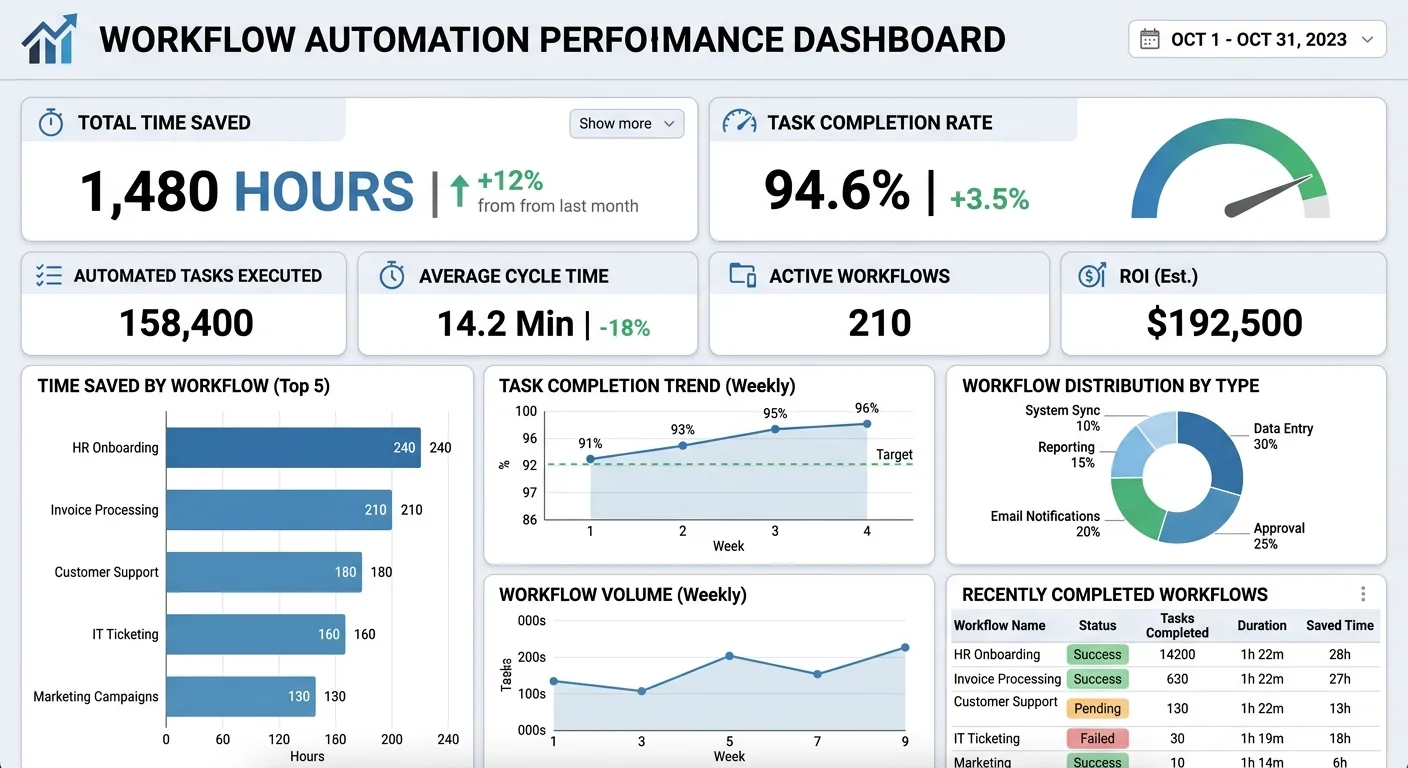
Automation without measurement is just faith. From day one, track the time each automated workflow saves per week. Compare it to the time the manual process consumed. Use a simple spreadsheet if you do not have analytics built into your tool. The goal is not just to feel faster but to prove it with numbers your leadership team can understand and support. Quantified results also motivate your team to identify more automation opportunities.
"The best automation is invisible. Your team should notice the absence of tedious work, not the presence of a new tool."
Tracking Metrics That Matter
Focus on four metrics: time saved per workflow per week, error rate reduction (how many fewer mistakes occur), task completion speed (how quickly items move through the pipeline), and team satisfaction scores. The first three are quantitative and easy to track. The fourth requires a monthly one-question survey: "How much of your work feels repetitive?" Track this score over time. If it drops steadily, your automation strategy is working on the human level too.
Schedule a quarterly review of every active workflow. Tools update, team structures change, and business processes evolve. A workflow that made perfect sense six months ago might now route approvals to someone who changed roles. During these reviews, check for workflows with low trigger counts (they might be obsolete) and high error rates (they might need redesign). Delete what is no longer needed rather than letting zombie automations clutter your system.
Scaling is the final piece. Once your team has three to five successful automations running, create a simple request process for new ones. Let any team member propose a workflow by filling out a template: what is the trigger, what are the steps, and how much time would it save? This democratizes automation and turns it into a team habit rather than a one-time project. The most productive teams treat workflow automation as an ongoing practice, not a checkbox.
Avoid automating broken processes. If a workflow is inefficient when done manually, automating it just produces bad results faster. Fix the process first.
Frequently Asked Questions
?How long should the 5-day task audit take per team member?
?What's the difference between task management and workflow automation?
?How quickly can a team expect to see measurable time savings after automating?
?What's the biggest mistake teams make when starting with workflow automation?
Final Thoughts
Automating repetitive tasks is not about replacing people; it is about freeing them to do work that actually requires their brains. Start small with a clear audit, design your workflows on paper, choose tools that match your existing stack, and measure everything.
The teams that succeed with workflow automation for team productivity treat it as a continuous discipline rather than a one-off initiative. Build the habit, track the results, and let compounding time savings transform how your team operates week after week.
Disclaimer: Portions of this content may have been generated using AI tools to enhance clarity and brevity. While reviewed by a human, independent verification is encouraged.